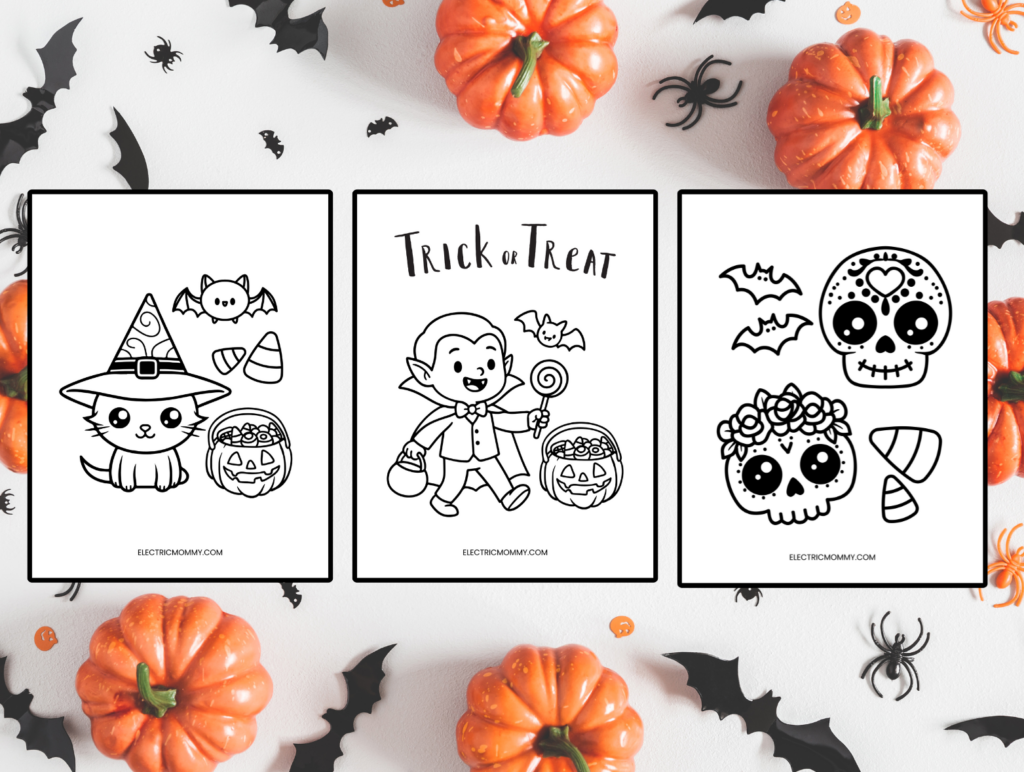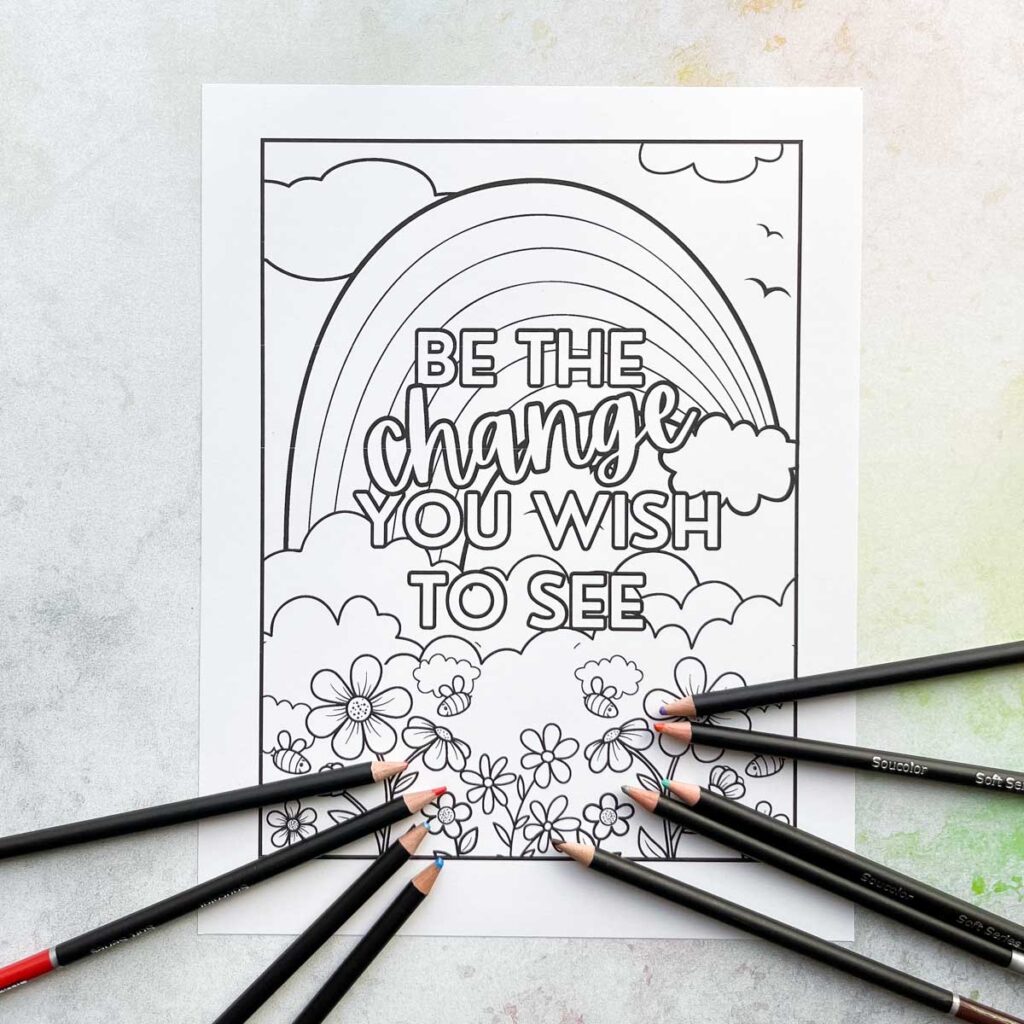
Printing coloring pages at home is usually easy once you choose the right file and a few sensible print settings. Whether the page opens as a PDF or an image, the main goal is the same: get clean outlines on paper without cropping the design or wasting ink. A little setup before you click Print can make the result look sharper and use less paper.
Open the File First
Start by opening the coloring page in the program it was saved for. PDFs usually print best from a PDF reader, while JPG or PNG files can open in a photo viewer, browser, or document app. Before printing, check that the page looks correct on screen and that the whole image fits within the preview. If the file appears tiny, stretched, or partly hidden, fix the view before sending it to the printer.
For most coloring pages, choose standard letter or A4 paper to match the file size, then set scaling to fit to page if the image is not already formatted correctly. If the page has important borders, keep an eye on the preview so nothing gets cut off. Black-and-white printing is usually best for line art because it avoids color ink use. Use normal or draft quality for simple pages, and raise quality only if the outlines look faint.
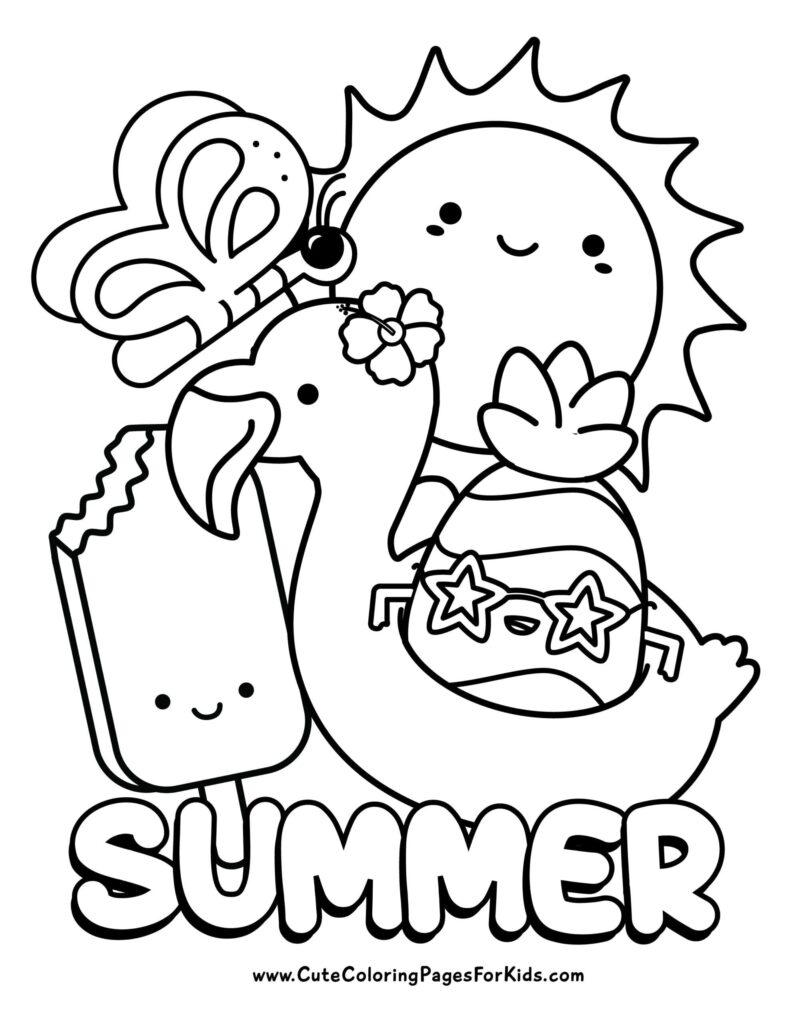
Paper and Print Quality
Plain copy paper works well for everyday coloring pages, especially with crayons, colored pencils, or light markers. If the page will be colored heavily with markers, thicker paper can help reduce bleed-through and curling. Let the printer feed one sheet at a time if paper jams happen, and avoid overloaded trays. Also, make sure the paper type setting matches what you loaded, since some printers adjust ink amount based on that choice.
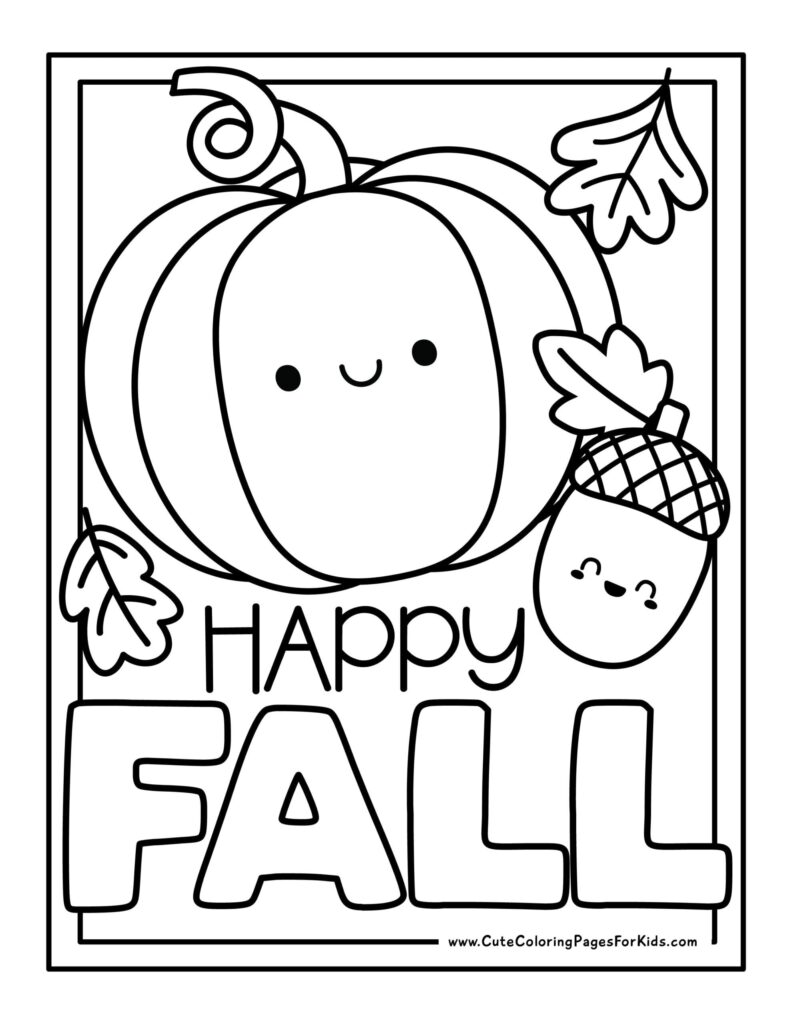
If the page prints blurry, first check whether the file itself is low resolution or if the printer is set to a very fast draft mode. If part of the design is cut off, reduce scaling or use fit to printable area. If the image looks too light, increase print quality or choose a darker setting if your printer offers one. The best final check is the preview window, since it usually shows cropping and page size issues before you waste paper.