Excel protecting worksheet is the built-in way to stop unwanted changes while still letting people work in the sheet. It is most useful when you want formulas, headings, or key data to stay fixed, but still allow actions like selecting cells, sorting a list, or filtering records. The key is to know what protection really controls and to set the permissions you want before turning it on.
Apply Sheet Protection
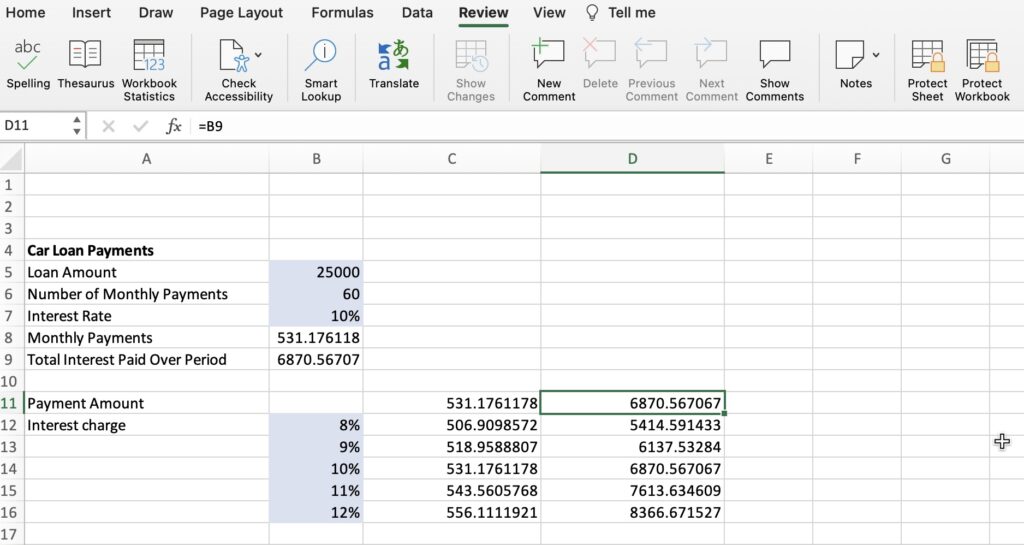
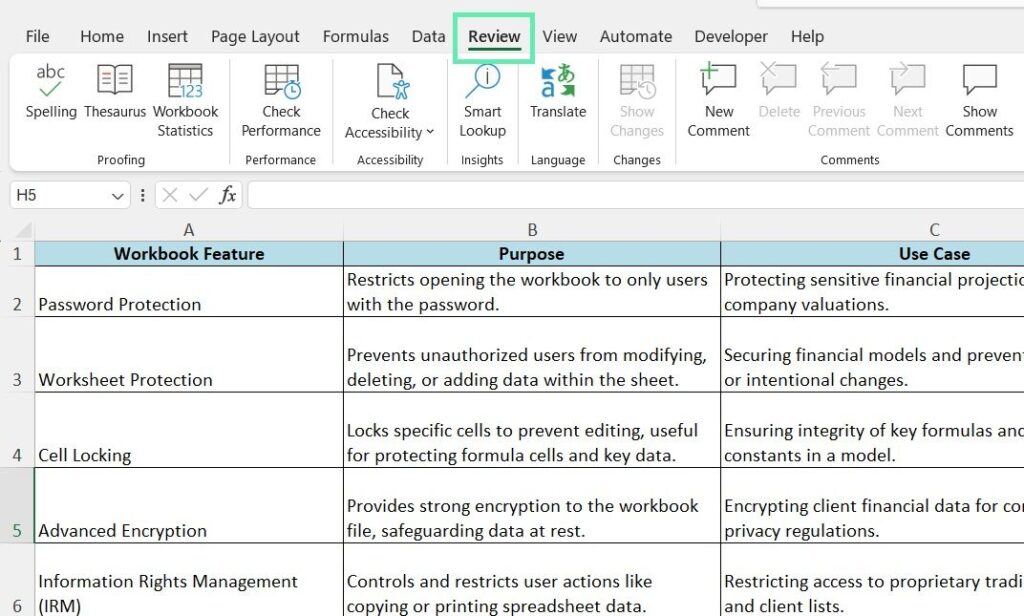
Start by deciding which cells should remain editable. In Excel, cells are locked by default, but that lock only matters after you protect the worksheet. To prepare a sheet, unlock any input cells first, usually by selecting them, opening Format Cells, and clearing the Locked option. Then use the Protect Sheet command on the Review tab to turn protection on.
When the sheet is protected, locked cells cannot be edited, while unlocked cells can still be changed. This is the core worksheet-protection workflow: lock what should stay fixed, unlock what users need to enter, and then apply protection to enforce it.
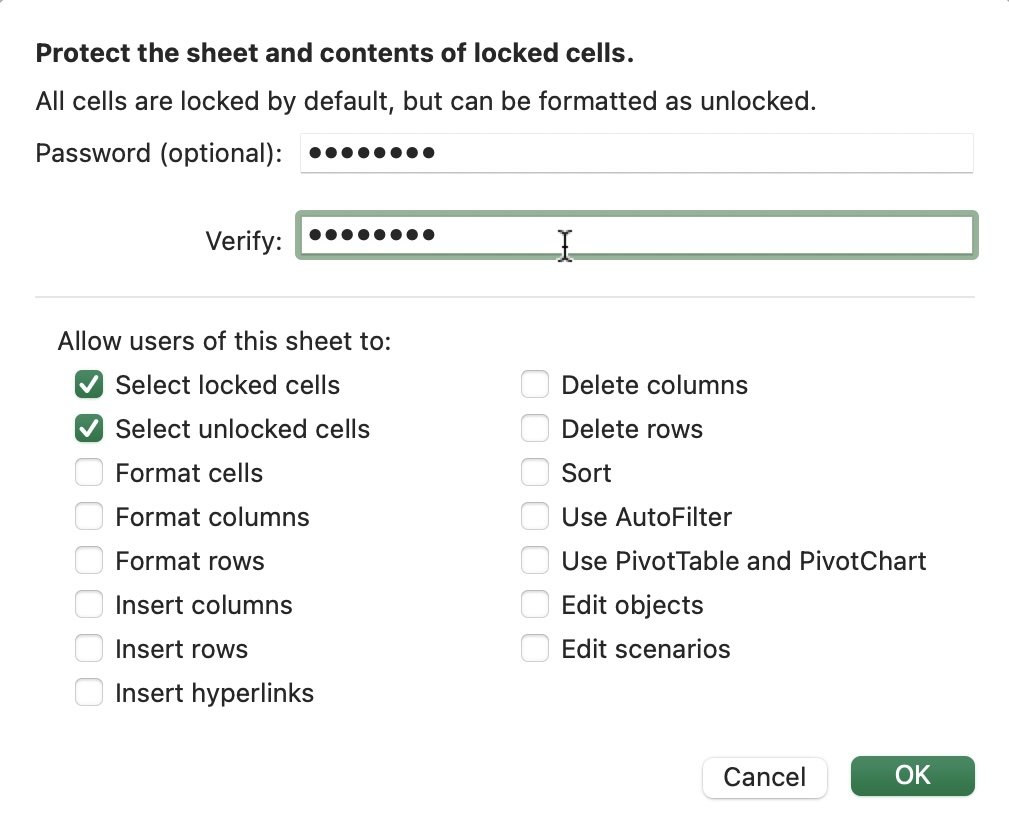
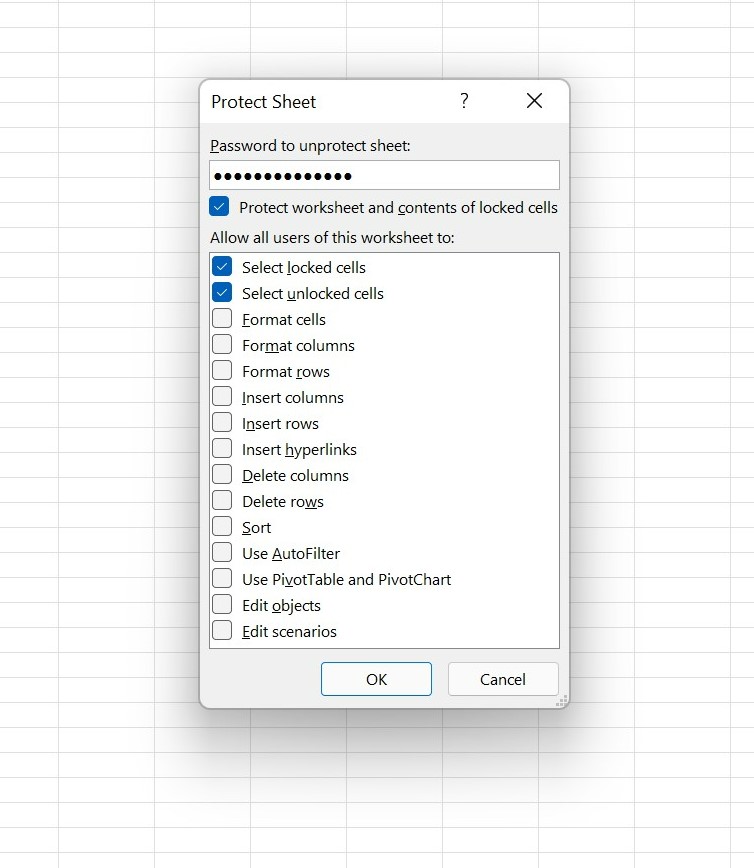
The permission checkboxes determine how usable the sheet will be. For many common worksheets, the most important options are Select locked cells, Select unlocked cells, Sort, Use AutoFilter, and Format cells. If users need to click through formulas, leave selection enabled. If the sheet is a table or report, sorting and filtering can be allowed without giving full edit access.
Formatting permissions are helpful when people need to resize rows, columns, or apply limited formatting, but they should be used carefully because they reduce control. The best setup usually balances protection with the exact tasks users must complete, rather than turning everything off.
Password and Limits
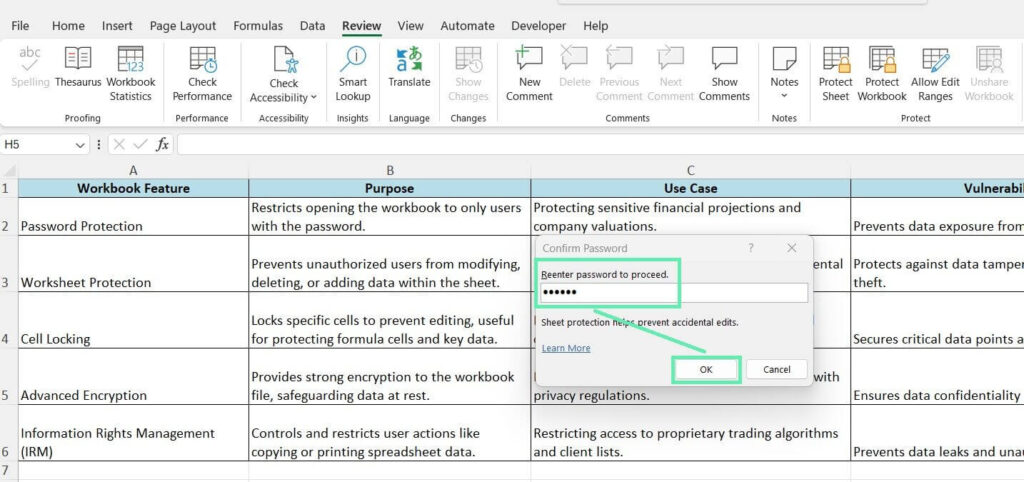
When you protect a worksheet, Excel lets you set a password, which helps prevent casual changes to the protection settings. If you use one, store it safely, because removing protection later requires that password. Even so, worksheet protection is not full security: it is designed to control editing inside Excel, not to secure sensitive data against determined access. A protected worksheet can still be viewed, and protection should not replace stronger file-level security when that is needed.
The practical takeaway is simple: unlock only the cells that should change, choose only the permissions users truly need, and protect the sheet as a control layer, not as a security boundary.