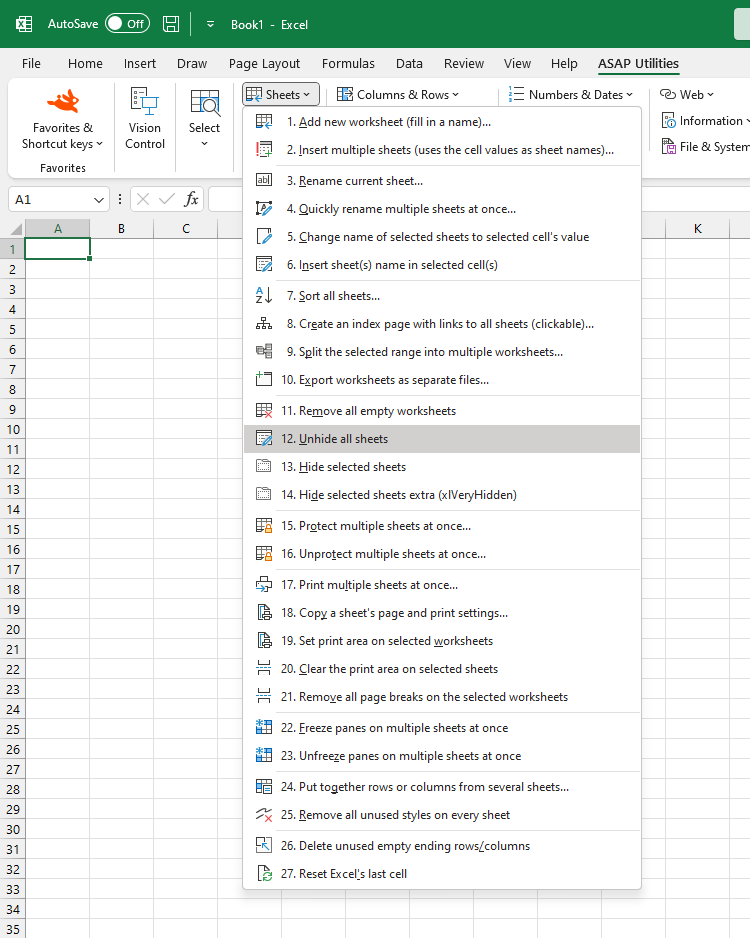
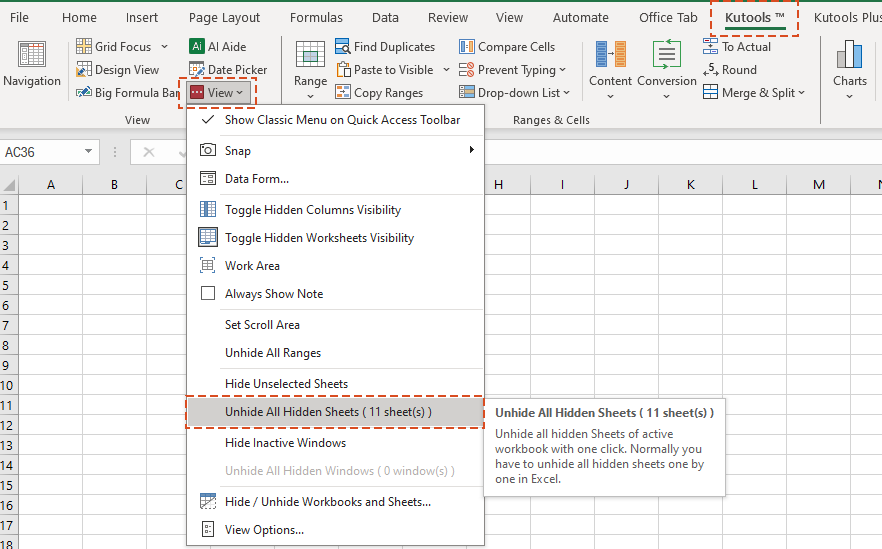
If you need to excel unhide worksheets, the standard fix is quick: find the sheet tab area, open the Unhide command, and pick the worksheet you want back. In most cases, a hidden sheet is only concealed from the tab row, so it can be restored in a few clicks. The main exception is a very hidden sheet, which needs a different approach because Excel does not show it in the normal Unhide list.
Unhide a sheet
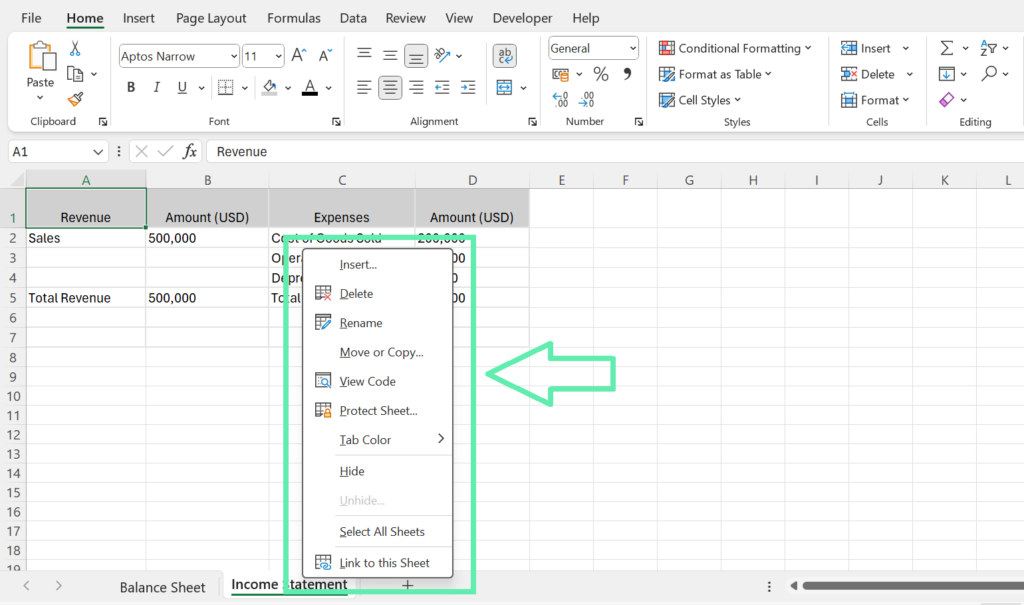
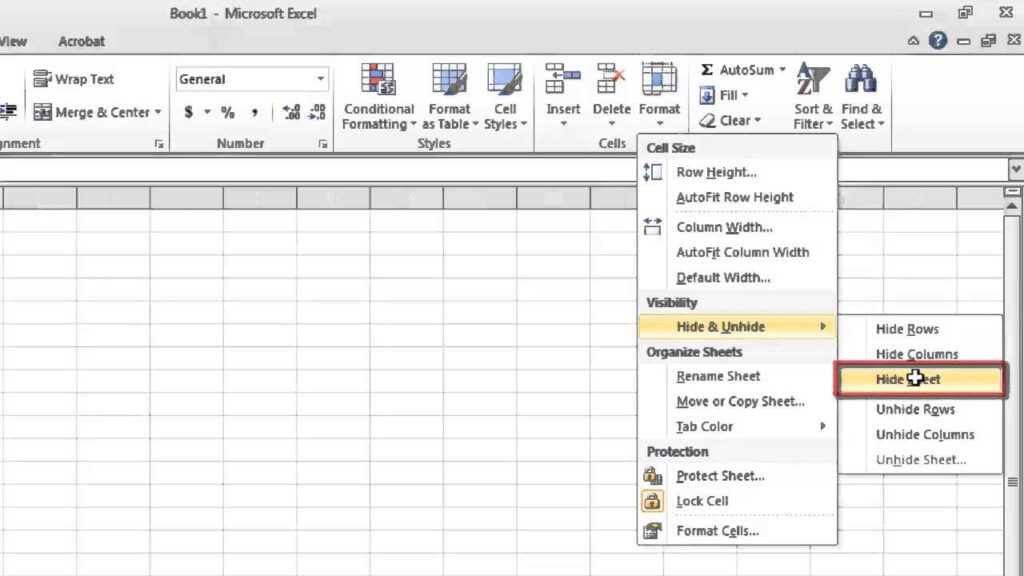
On Windows, right-click any visible sheet tab and choose Unhide. Select the worksheet from the list and click OK. You can also use the ribbon: Home, then Format, then Hide & Unhide, and finally Unhide Sheet. On Mac, the command is usually under the sheet tab menu or the Format menu, depending on the version. If the sheet was simply hidden, it should reappear immediately in the workbook tabs.
Very hidden sheets
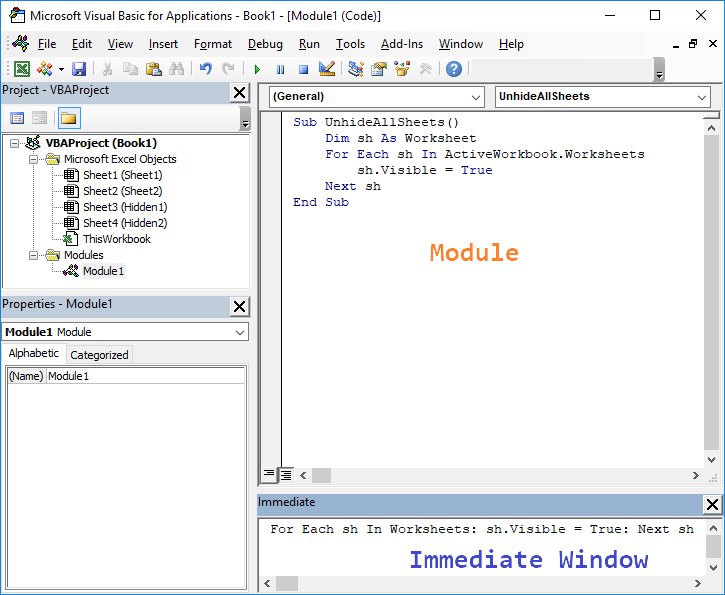
A very hidden sheet is different from a normal hidden sheet because it is set in the workbook structure so Excel does not offer it in the Unhide dialog. That usually means the sheet was hidden through VBA or by changing its Visible property to very hidden. To show it, the workbook typically has to be opened in the Visual Basic Editor and the sheet visibility changed back to normal. If VBA access is restricted, the sheet will stay hidden until that restriction is lifted.
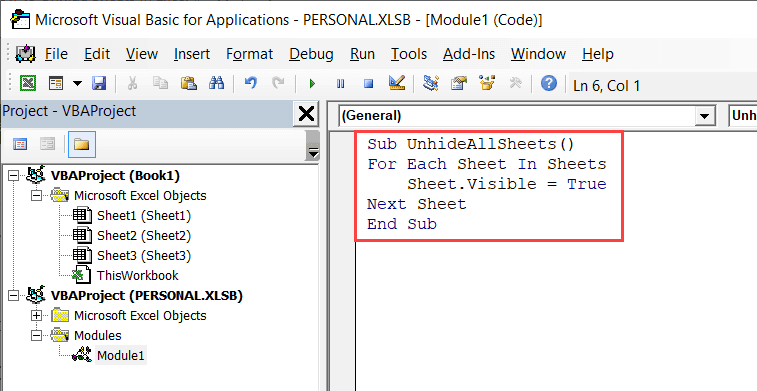
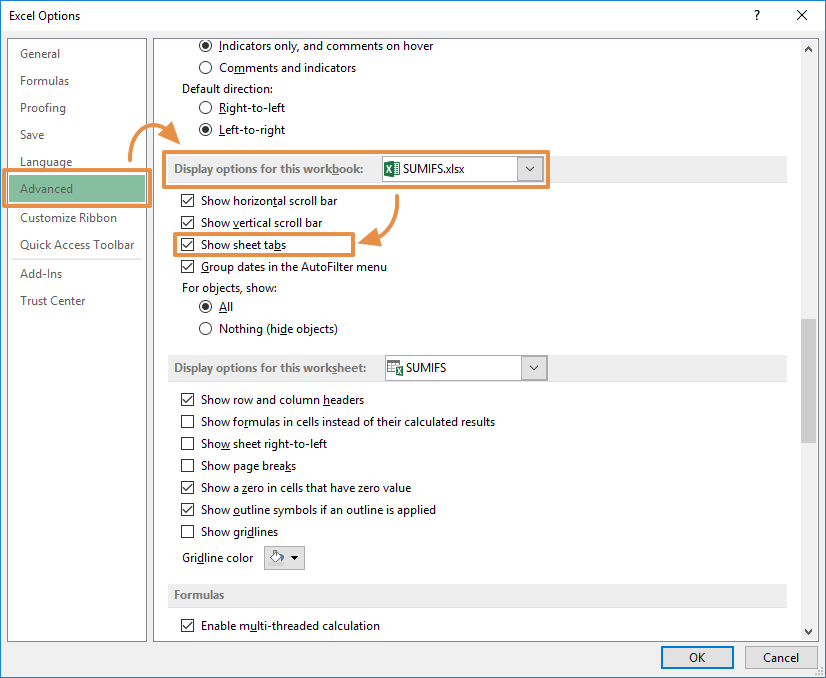
If the Unhide option is unavailable or the sheet still will not appear, check whether the workbook structure is protected. Protected workbooks can block sheet visibility changes even when tabs are visible. Also confirm that the file is not read-only or shared in a way that limits editing. If the workbook uses VBA-based hiding, the sheet may not appear in the menu at all, which points back to a very hidden sheet rather than a broken menu.
The fastest next step is to identify whether you are dealing with protection or visibility settings, then use the matching fix.